
Every screen, explained.
The complete guide to FLIQMARK, in the order you are likely to need it. Every screenshot is the real application, shown with a demo company.
Getting started
From a fresh install to a company you can post into.
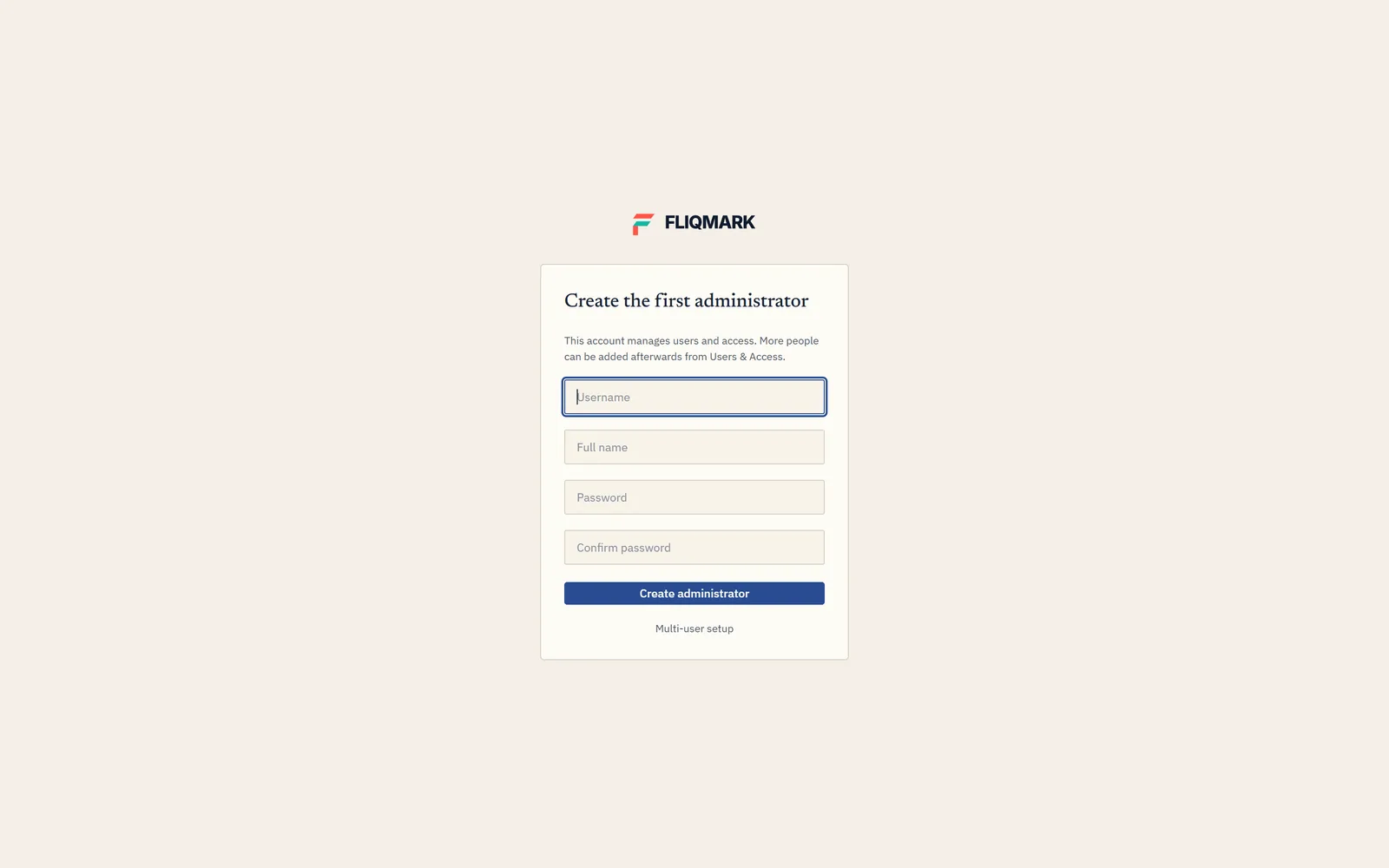
The first time you open FLIQMARK there are no users, so it asks you to create an administrator. This account manages everyone else’s access. Each user can change their own password later from the Password key on the Gateway. If the administrator password is ever lost, Forgot administrator password? on the sign-in screen gives you a request code; send it to us and the one-time code we return lets you set a new one.
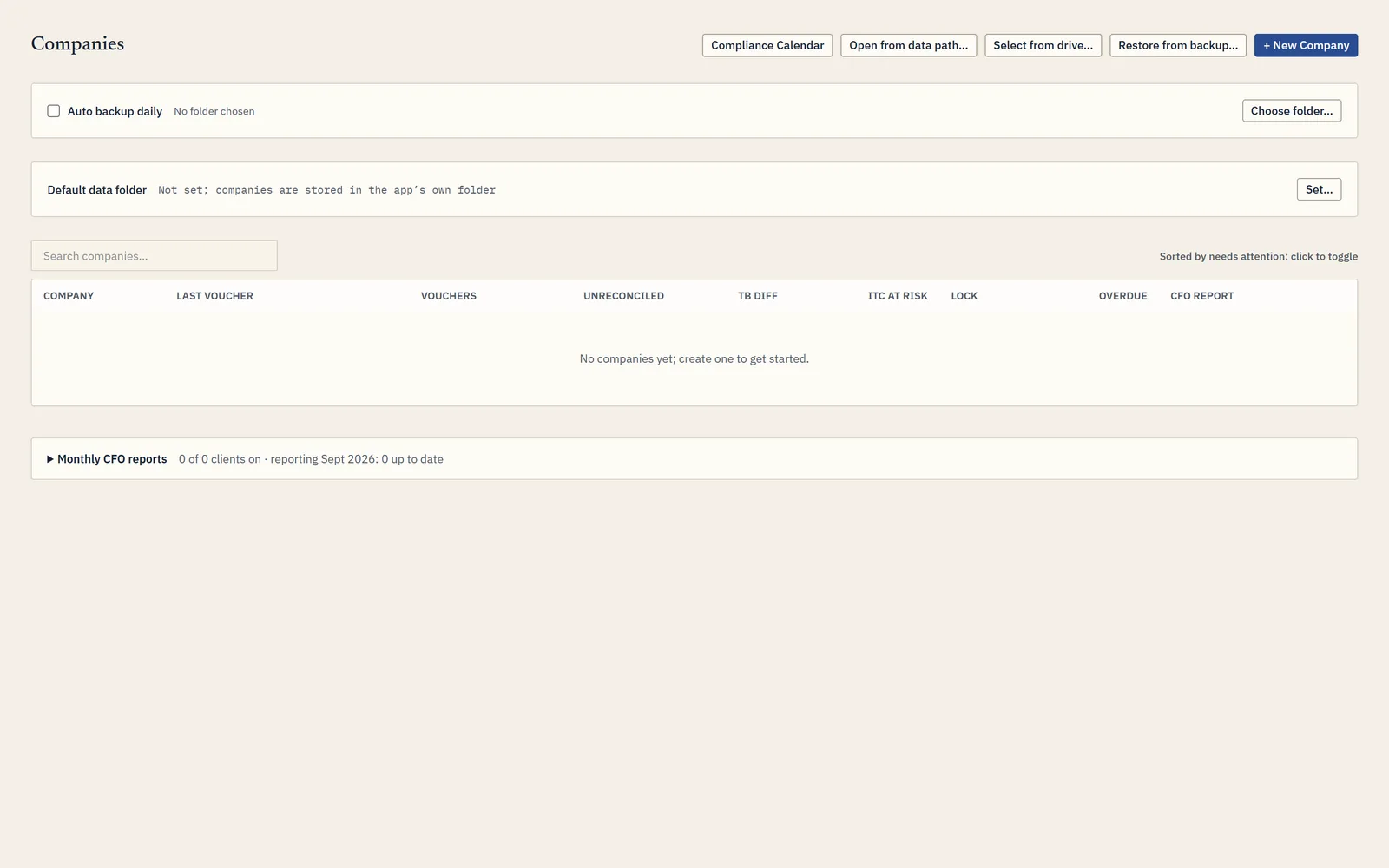
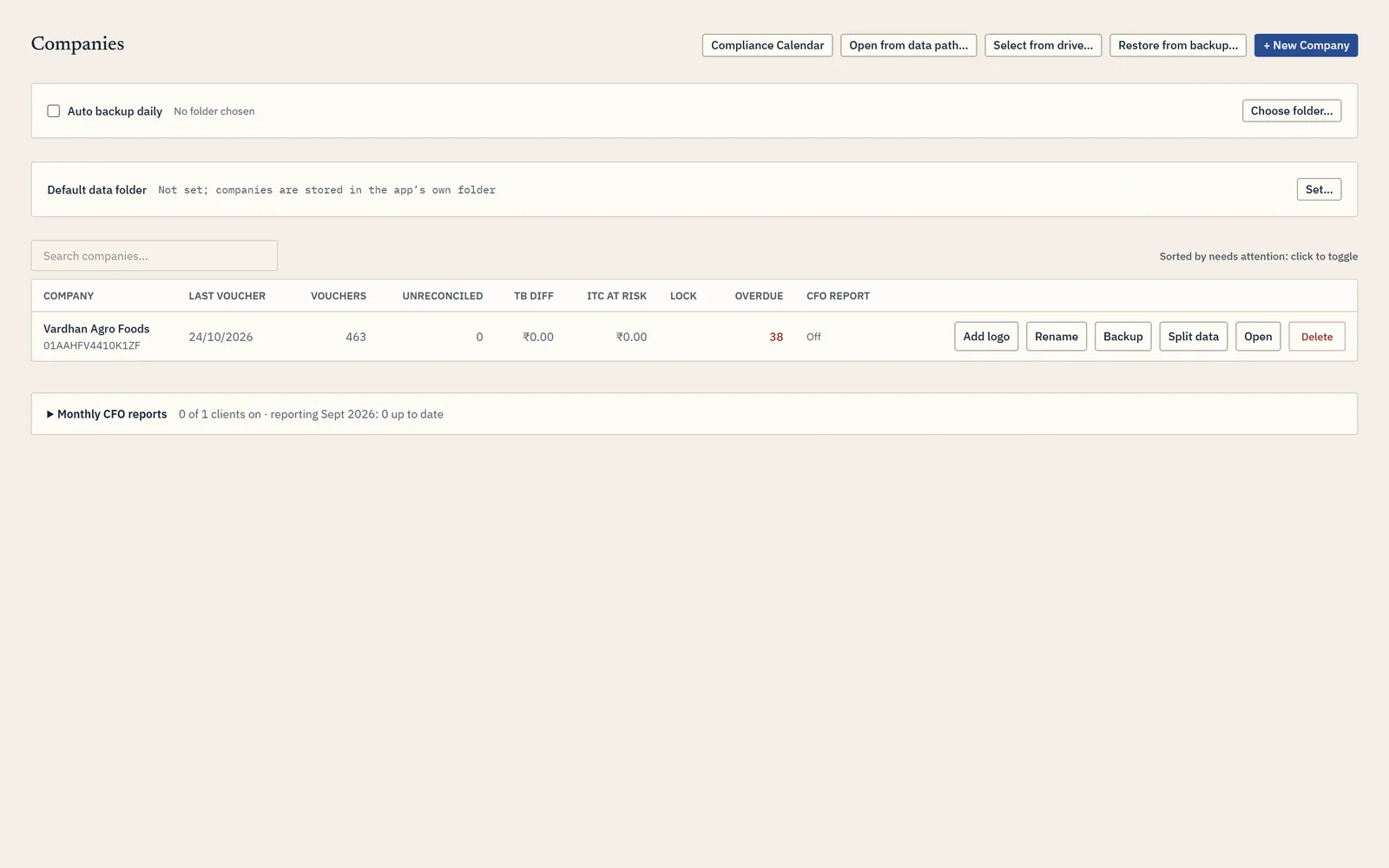
You then land on the Companies screen. This is the home of the software: every client’s books are listed here, and the columns tell you which one needs attention before you open anything – last voucher date, voucher count, how much is unreconciled, whether the trial balance ties, ITC at risk, and overdue returns.
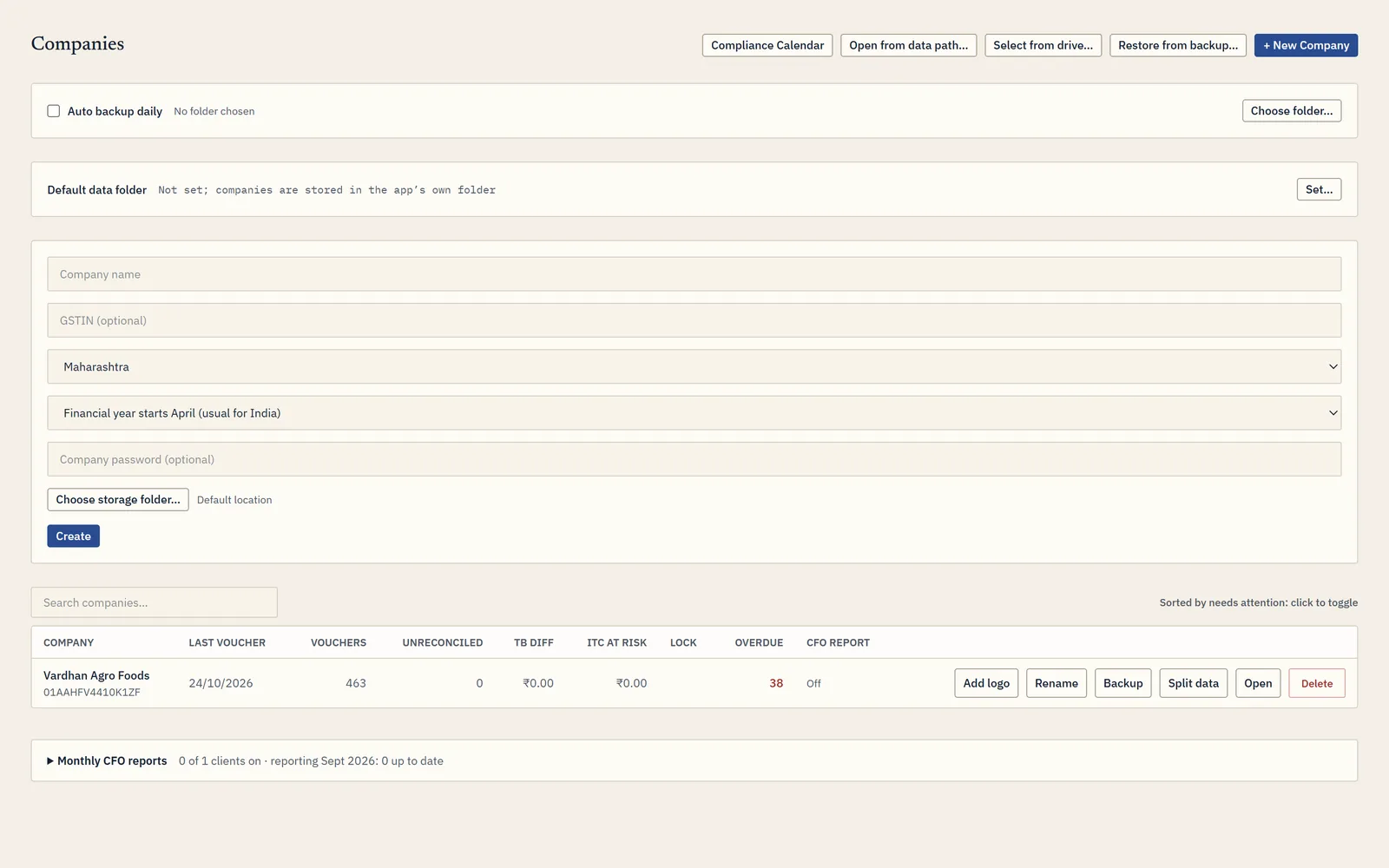
Two settings are worth doing on day one, both on this screen. Auto backup daily takes a copy of every company once a day while the software is open – point it at a different drive from your books. Default data folder tells the software where your company files live, and lists what it finds there automatically.
Creating a company needs a name and, for anyone registered, a GSTIN. The state matters: it decides whether GST on a transaction resolves to CGST and SGST or to IGST. The financial year starts in April for almost everyone in India.
Opening it brings you to the Gateway, the home screen for every area of the company. Every area has a letter shortcut, and the panel on the right is the function-key bar, which follows you through the software and always shows what the F-keys do on the screen in front of you.
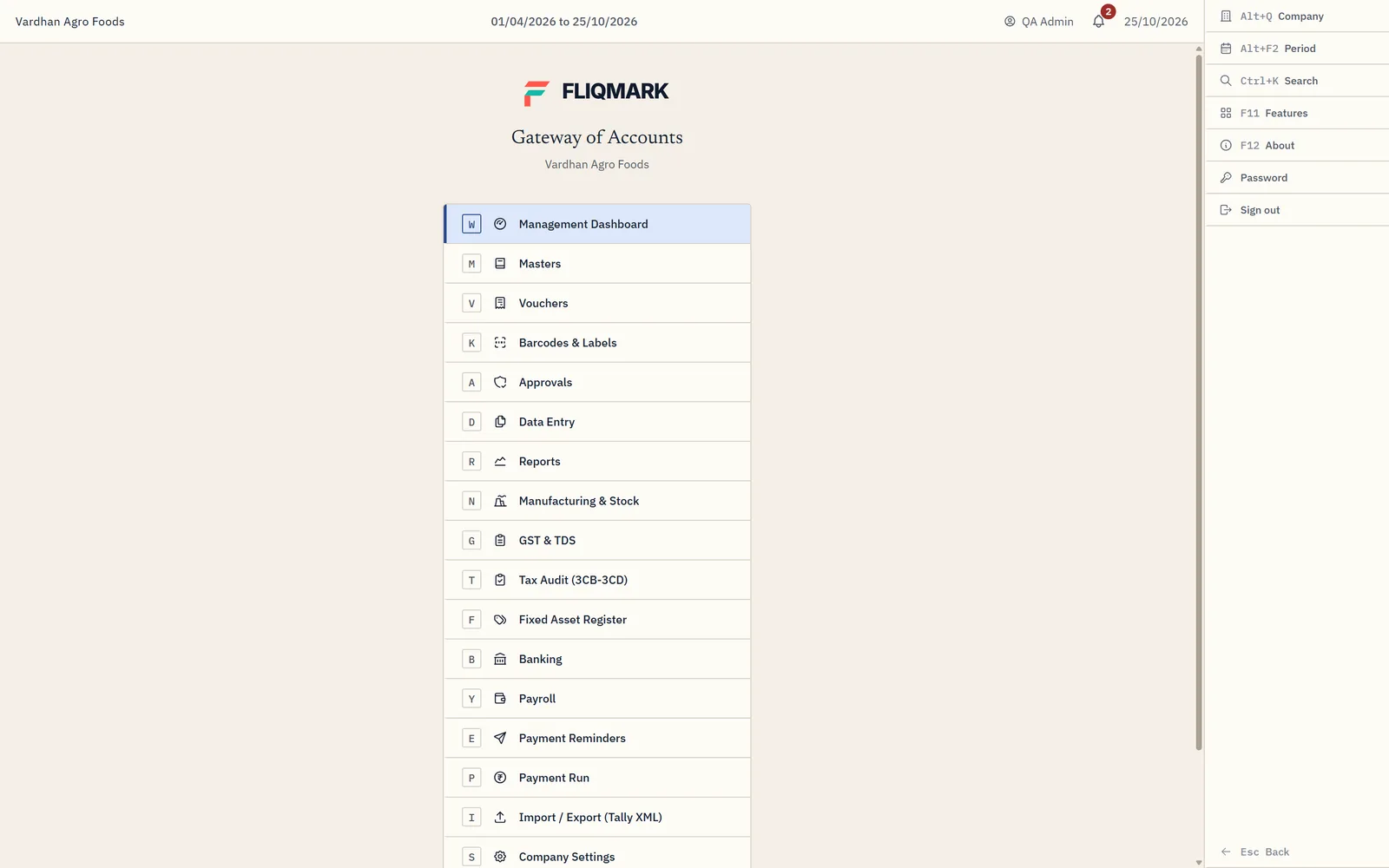
| Esc | Back one step, from anywhere |
| Ctrl+K | Search across the whole company |
| Alt+F2 | Change the period you are looking at |
| Alt+Q | Switch company |
| F11 | Company features (inventory on/off, approvals, entity type) |
| F12 | About and version |
Management dashboard
The practice-level view: what is moving, what is owed, what needs chasing.
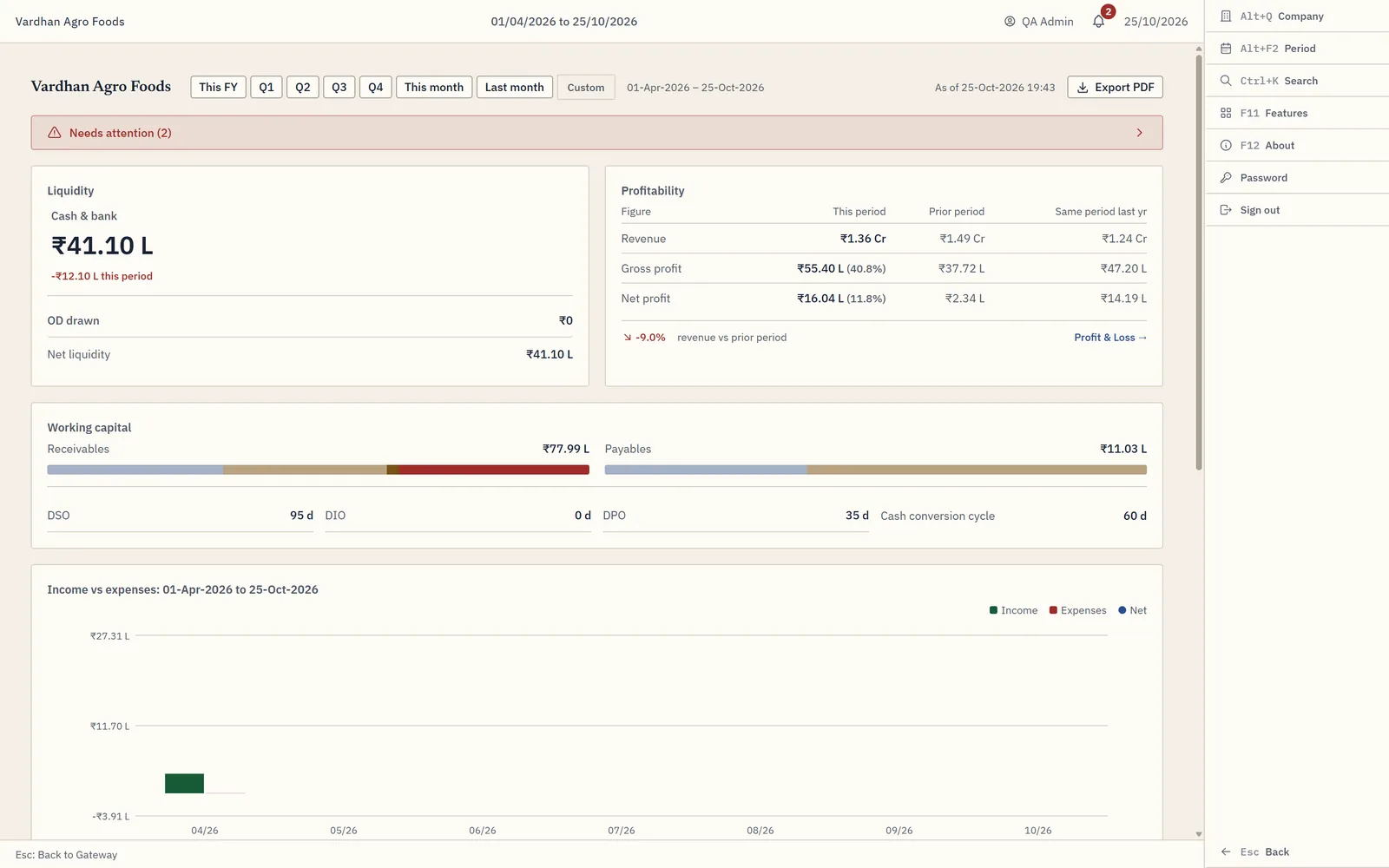
The dashboard summarises the open company – headline profit and loss, revenue concentration, debtor and creditor days, cash position, and the ratios that tell you whether anything is drifting. Every figure is computed live from the vouchers; there is no build step and nothing to refresh.
Masters
Groups, ledgers, stock items, units – the structure everything posts into.
The standard chart of accounts is already in place when a company is created, with the standard reserved groups. You are adding to it rather than building from nothing.
Groups decide which side of the balance sheet an account lands on and whether it touches the profit and loss. The reserved groups cannot be deleted; anything you add sits under one of them and inherits its nature.
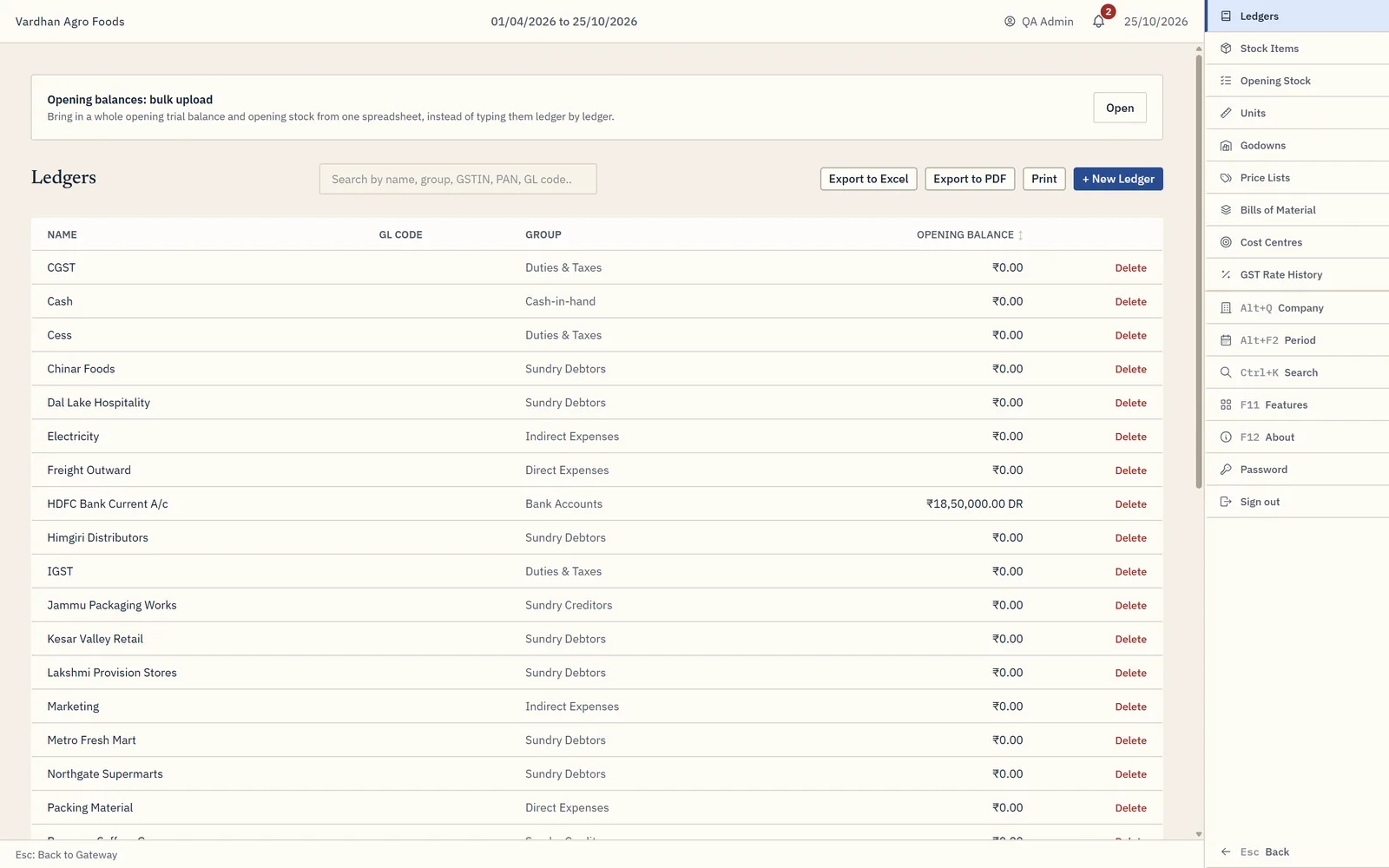
Ledgers are the accounts themselves. For customers and suppliers, fill in the GSTIN and state – that is what drives place of supply on an invoice and what GSTR-1 reports against. The credit period feeds the ageing and outstanding reports. Opening balances follow the usual sign convention: negative is debit, positive is credit.
Stock items need a unit, an HSN code, and a GST rate. Those flow straight onto invoices and into the HSN summary in GSTR-1, so entering them once here saves correcting them on every bill. If you keep accounts only, inventory can be switched off entirely in F11.
Voucher entry
The heart of the software, built for fast keyboard entry.
The voucher type sits on the left, the number is assigned for you, and the date is top right. The function-key panel lists every type with its key. The running total in the bottom right must balance before the voucher will accept.
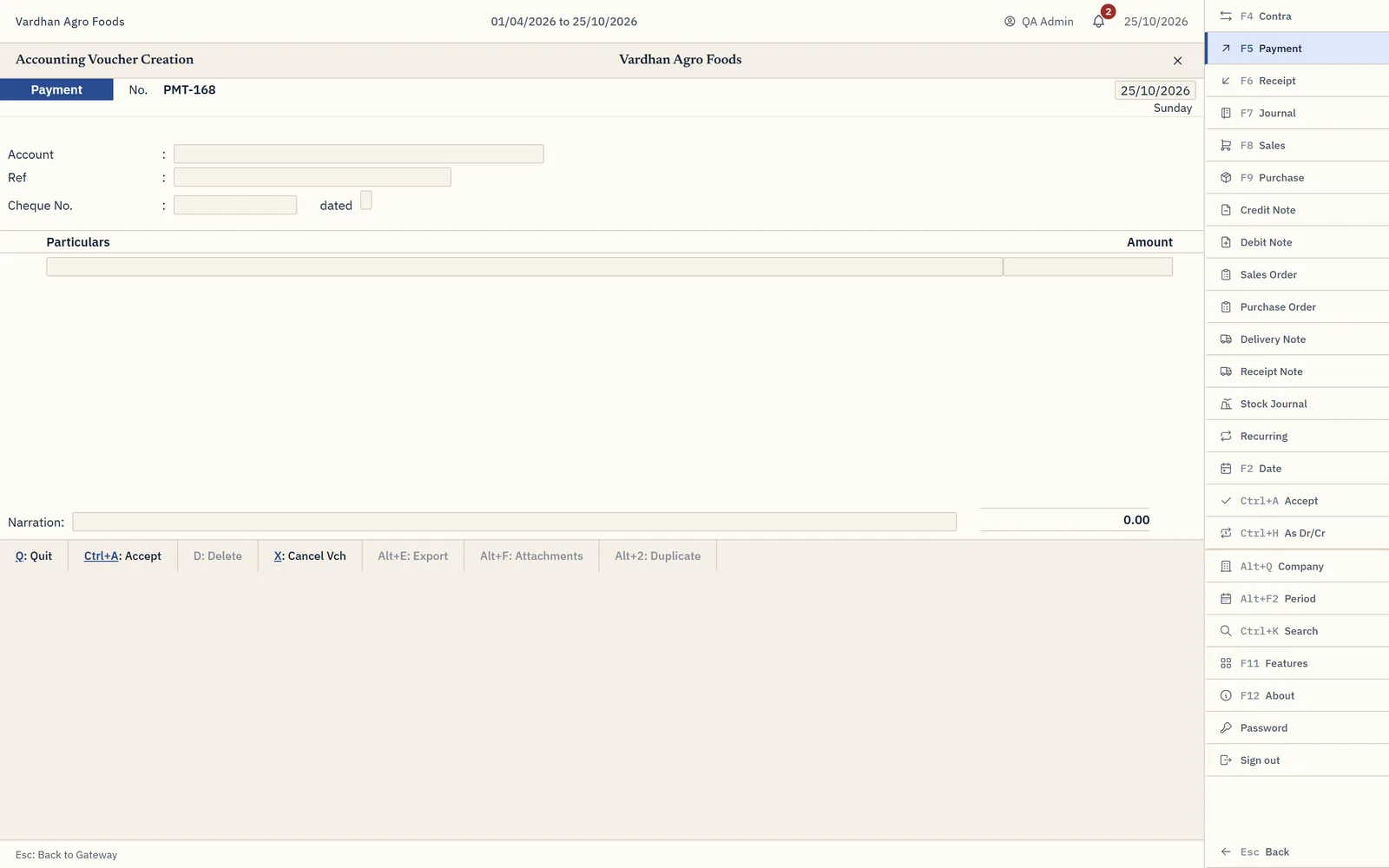
| F4 | Contra – money between your own cash and bank |
| F5 | Payment |
| F6 | Receipt |
| F7 | Journal – depreciation, provisions, adjustments |
| F8 | Sales |
| F9 | Purchase |
| Ctrl+A | Accept the voucher from anywhere on the screen |
| Ctrl+H | Switch the entry to plain Dr/Cr |
| Alt+F | Attach a scanned bill to this voucher |
On a receipt or payment against a party, allocate the amount to the bill it settles – New Ref for a fresh bill, Agst Ref to clear an existing one. That allocation is what makes the outstanding and ageing reports meaningful; skip it and those reports quietly empty out.
Sales and purchase vouchers come in three shapes. Item Invoice carries stock lines with quantity, rate, HSN and GST per line. Accounting Invoice carries ledger lines with a GST percentage but no stock. Voucher is plain debit and credit rows. Tax is computed per line rather than applied at the end, which is what keeps the HSN summary correct.
Any voucher can be reopened and altered. Every change is written to the audit trail with who made it and when, and that cannot be switched off. Deleting asks for a reason and keeps the voucher as a soft delete so the trail stays complete.
Once a period has been filed, lock it from Company Settings. After that the software refuses to post into it – which prevents a back-dated entry landing inside a return you have already submitted.
Data entry
Getting volume in without typing every voucher.
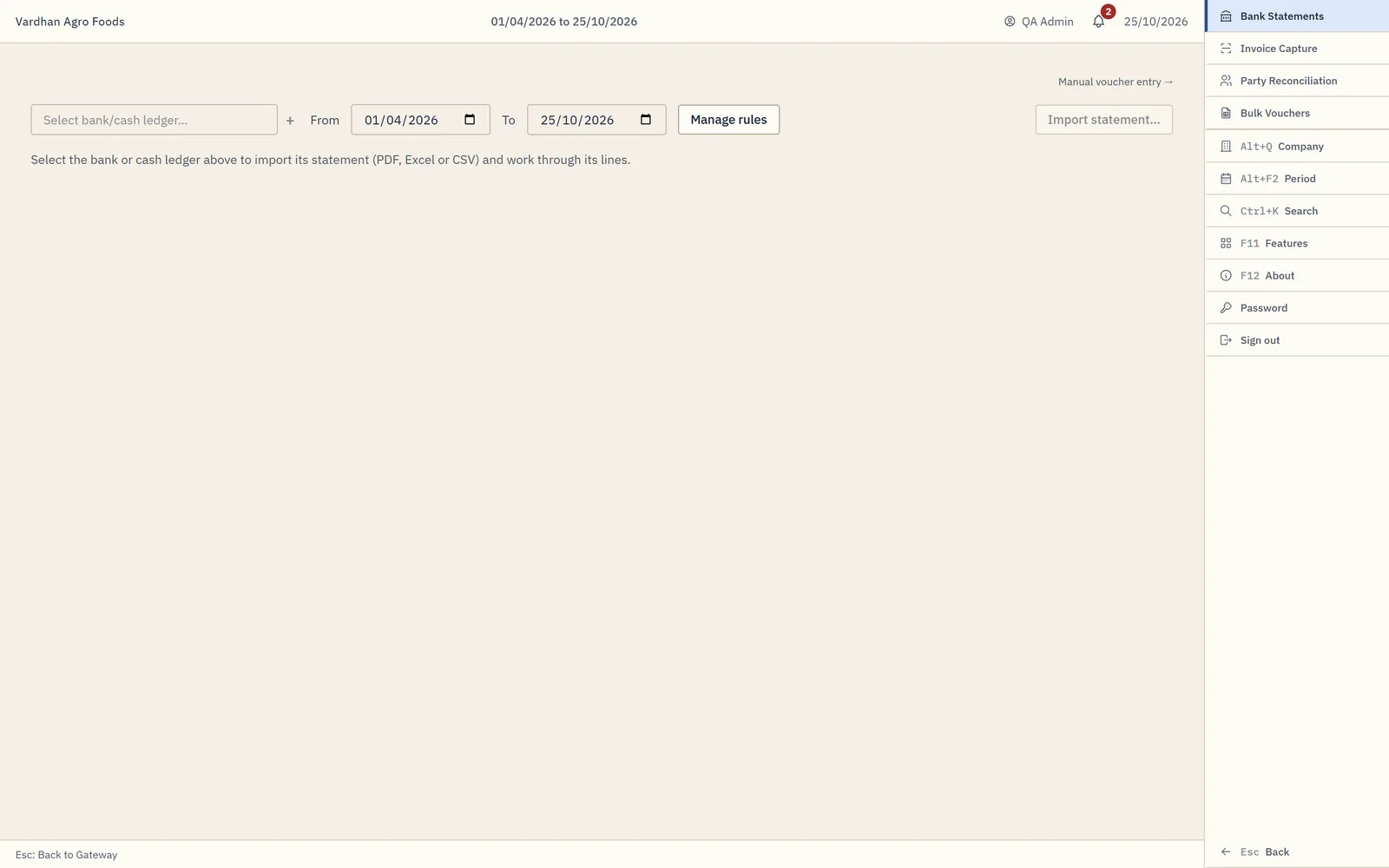
Bank statement import takes CSV, Excel or PDF. You tell it which column is the date, which is the amount, and which is the narration – then save that as a layout and you never map that bank again. Mapping rules go further: a rule saying any line containing “ELECTRICITY” posts to your electricity ledger means the obvious lines tag themselves.
Invoice capture reads a scanned bill or PDF and extracts the supplier, invoice number, date and amounts. Check what it read before posting – it is a time-saver, not an oracle.
Bulk vouchers is a grid, useful for a month of similar entries. Party reconciliation compares your ledger against the statement a customer or supplier sent you and shows what sits on one side and not the other, with the date differences.
Reports
Everything reads live from the books, and every figure drills down.
The Day Book is everything posted, newest first, filterable by type and date. Click any line to open that voucher.
Trial balance, profit and loss and balance sheet are grouped the way your chart of accounts is grouped and expand down to the ledger. If the trial balance does not tie, the Companies screen tells you before you even open the company.
Outstanding and ageing read the bill allocations made during entry, with buckets from each party’s credit period. Stock summary shows quantity, value and movement per item. Financial statements produce the ICAI-format set, with your own Note 1 and Note 2 text from Company Settings.
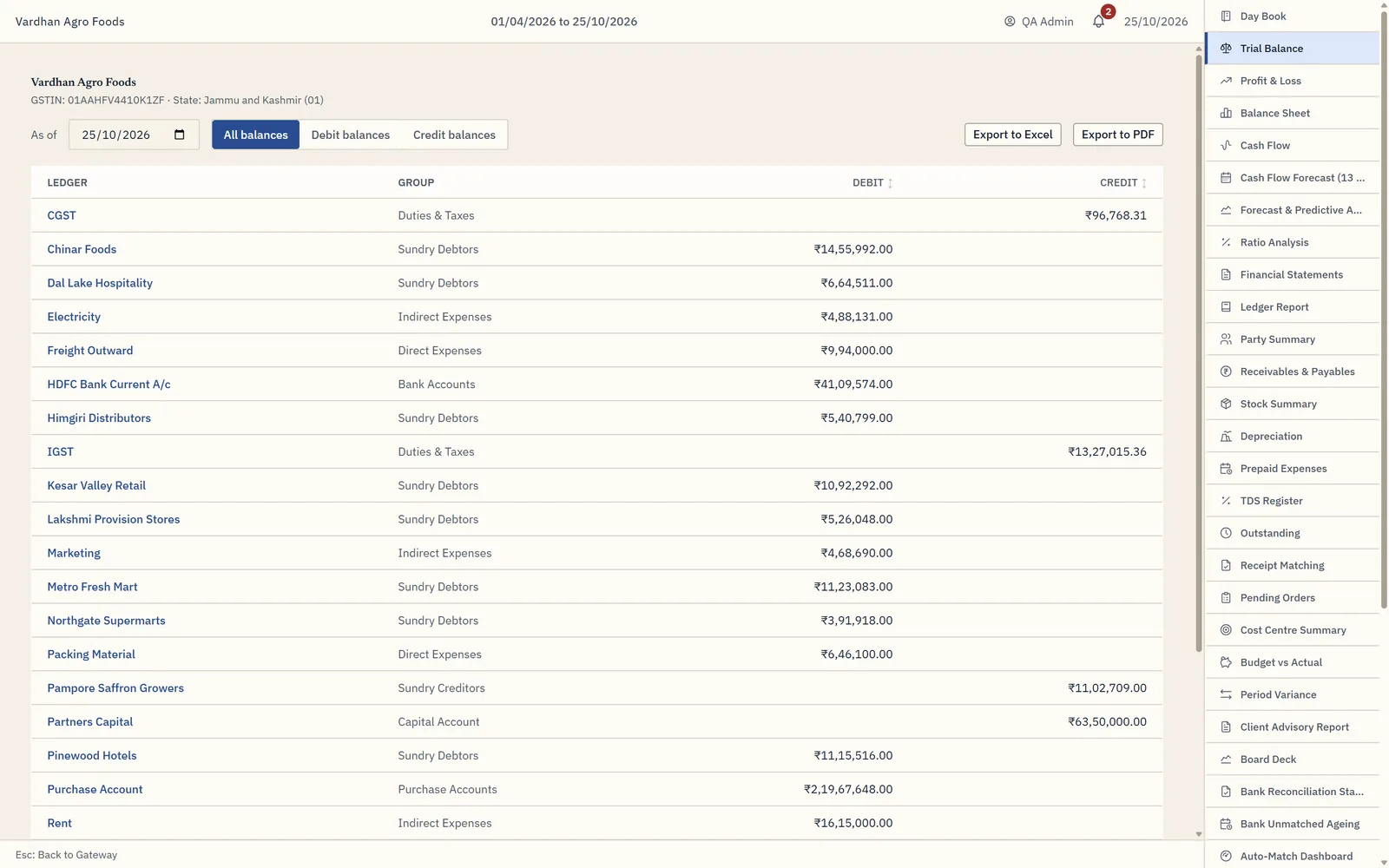
If you can see a number anywhere in this software, you can click it and find the voucher behind it.
GST and TDS
Returns built from your vouchers, and the reconciliation that protects your credit.
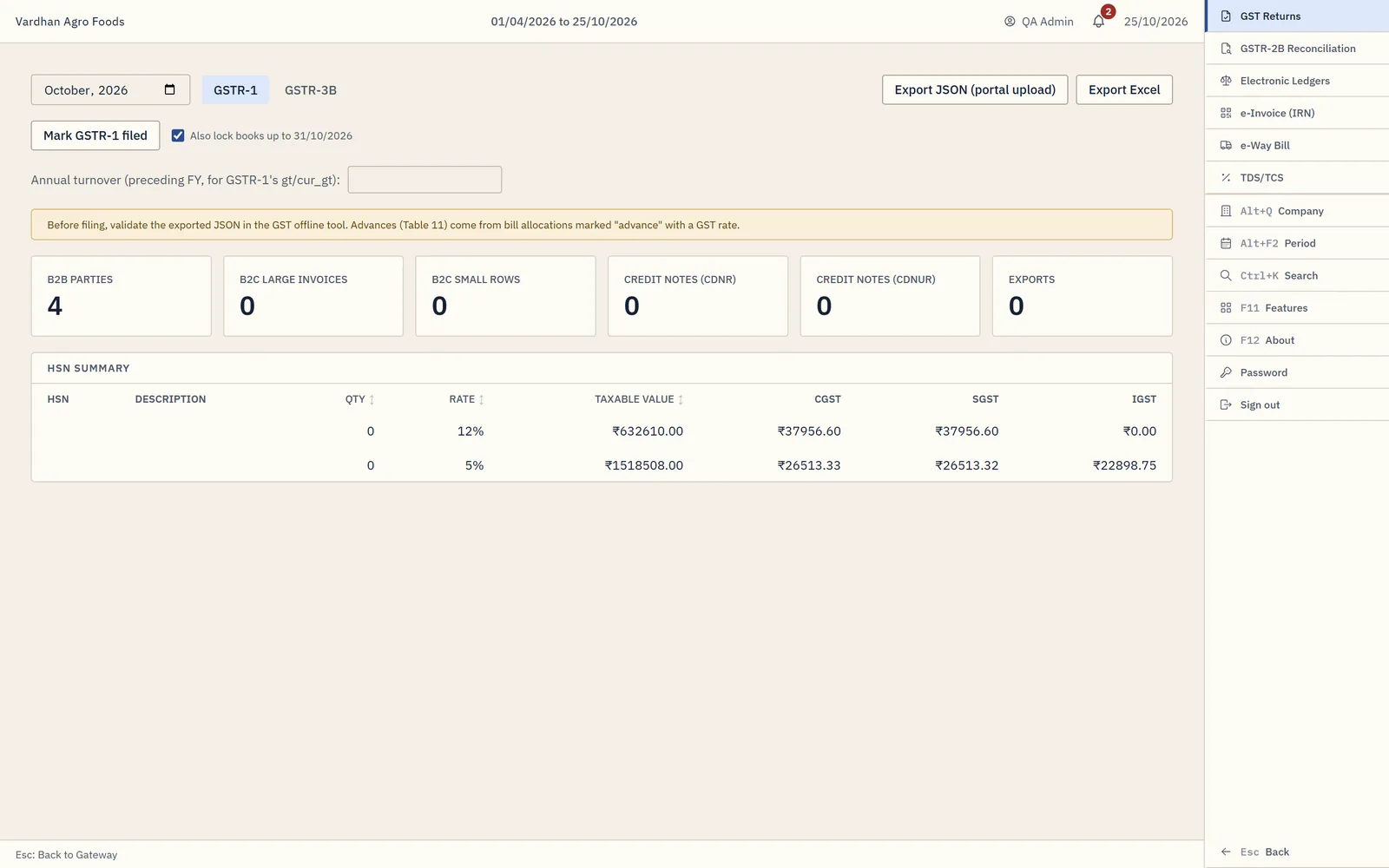
GSTR-1 is built from your sales vouchers – B2B by counterparty GSTIN, B2C by place of supply, plus the HSN summary. Export produces the JSON the portal accepts.
GSTR-2B reconciliation is where the money is. Import the 2B JSON from the portal and it matches against your purchases on GSTIN, invoice number, date and value, sorting everything into four buckets: matched, matched with differences, in 2B but not in your books, and in your books but not in 2B. That last bucket is your input credit at risk – the same figure the Companies screen warns you about.
GSTR-3B summarises outward supply and input credit on the basis you choose. TDS tracks deductions by section, records challans, and exports an FVU file for the return.
Banking
Reconciliation and the cheque register.
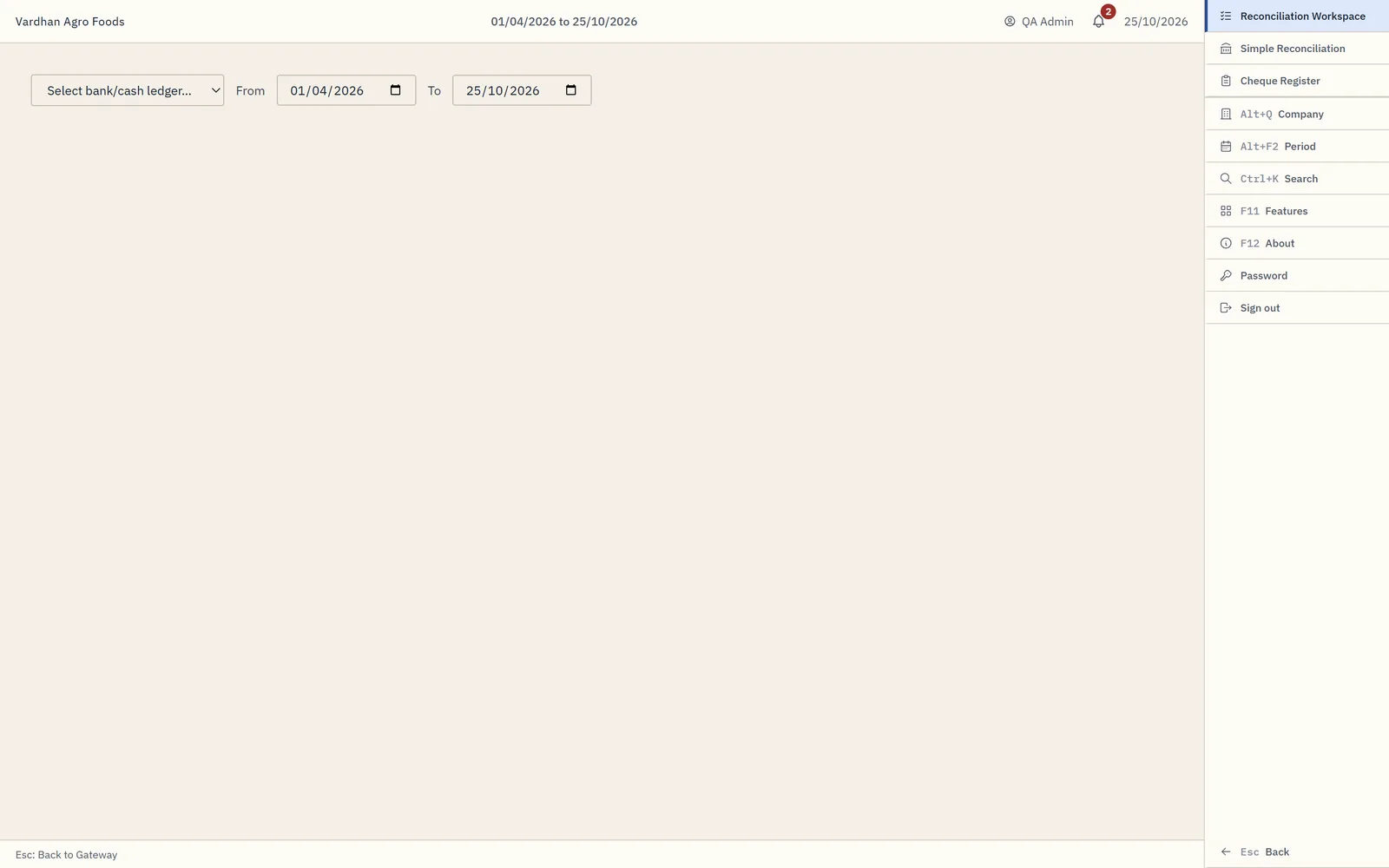
Reconciliation lines your bank ledger up against an imported statement. Tick off what matches; what is left is what needs explaining. The unreconciled count on the Companies screen is exactly what is outstanding here.
The cheque register tracks cheques issued and presented, with their dates.
Barcodes and labels
For practices whose clients handle physical stock.
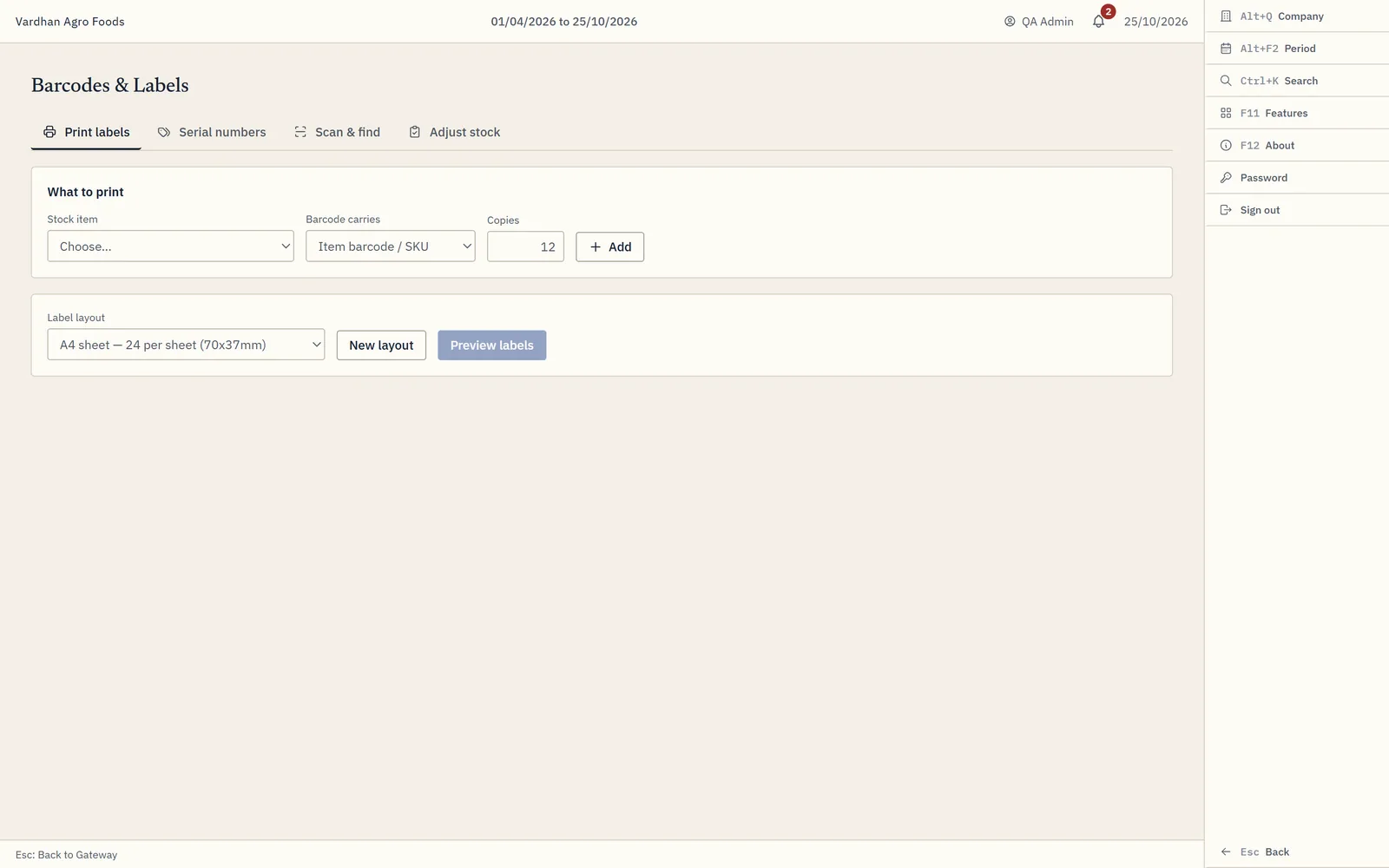
Scan a code and it resolves in order: serial number first, then item barcode or SKU, then batch. Serial numbers track individual units through their life; batches track groups with expiry dates. Stock adjustments record shrinkage and corrections. Label printing builds sheets from a preset you define once.
Approvals
Maker, checker, approver – as a record, not a gate.
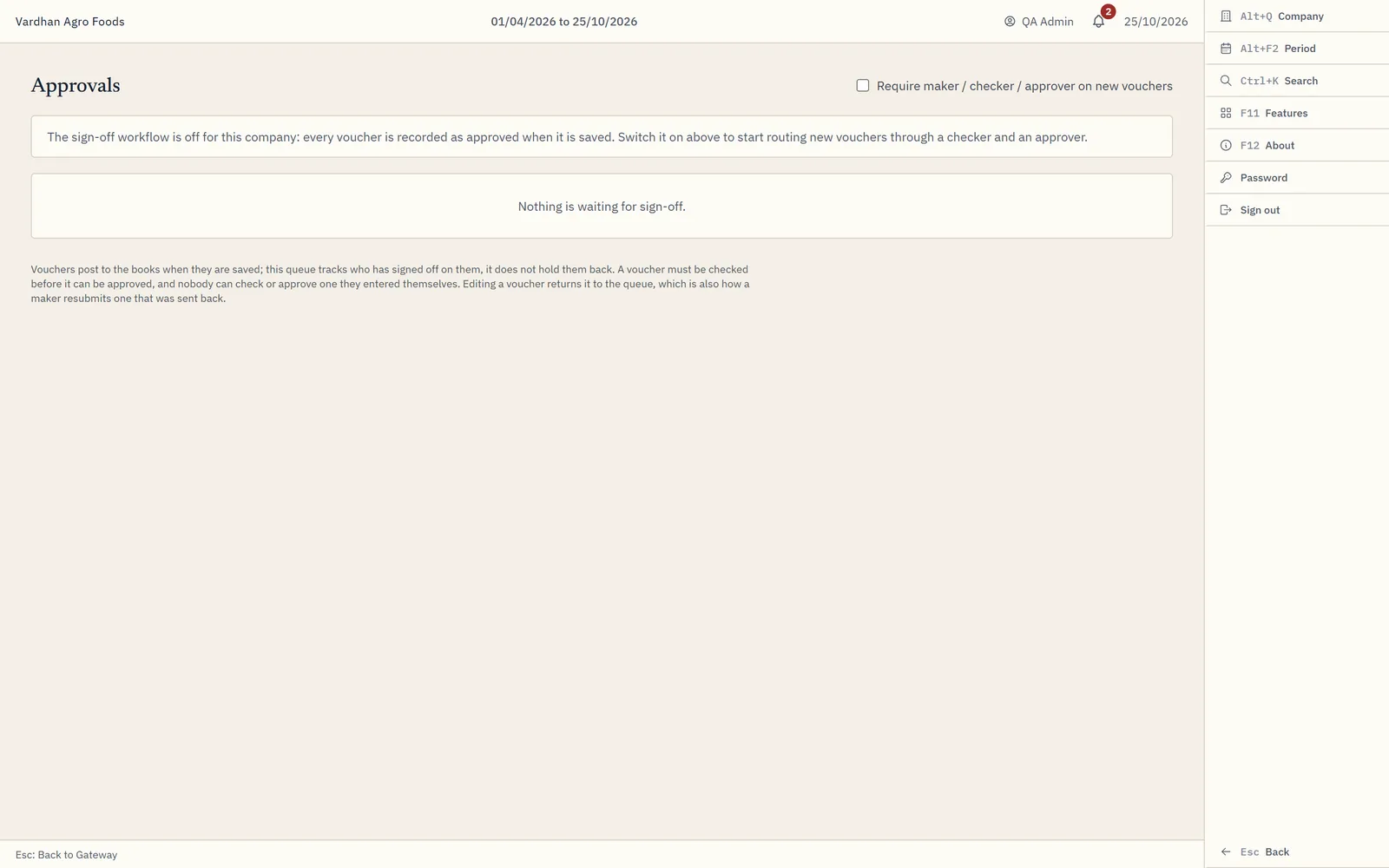
Switch approvals on in F11 and every voucher carries who entered it, who checked it and who signed it off. The queue shows what is still waiting on someone.
A voucher still posts to the books when it is saved. Approval is a review record rather than a gate – so your books always tie, and a pending item is never an invisible hole in the trial balance.
Importing and exporting books
Moving books in, and pushing them back.
The importer takes Tally’s own XML export and Marg ERP’s. Marg writes two files – load MASTER.XML first, then TRANSACTIONS.XML, because the vouchers reference the ledgers.
Nothing is written until you confirm. If some records have problems, you can import everything that checked out and skip the rest, with a list of exactly what was skipped and why.
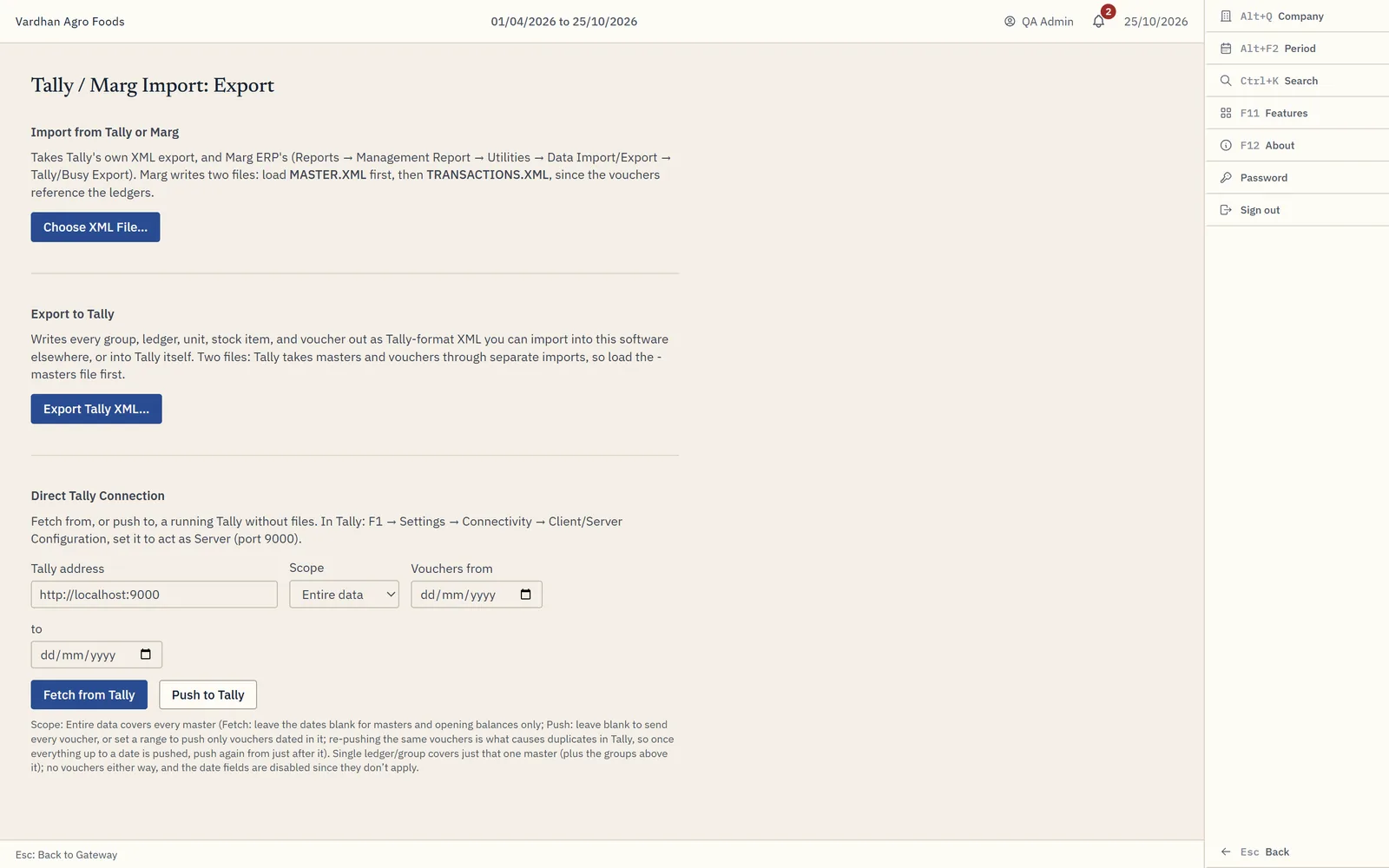
You can also talk to a running Tally directly. In Tally: F1 → Settings → Connectivity → Client/Server Configuration, set it to act as Server on port 9000. Fetch pulls masters and, when you give it dates, vouchers in that range.
Push sends your books back. Use the date range – push a month at a time, then push from the day after next time. Vouchers that originally came from Tally are sent back carrying Tally’s own identity for them, so Tally updates those rather than creating a second copy.
Re-pull a company before pushing it if it was imported with an older version. Vouchers brought in before the software started recording Tally’s identity have none stored, so Tally cannot recognise them on the way back.
Company settings
What prints on your invoices, and where documents live.
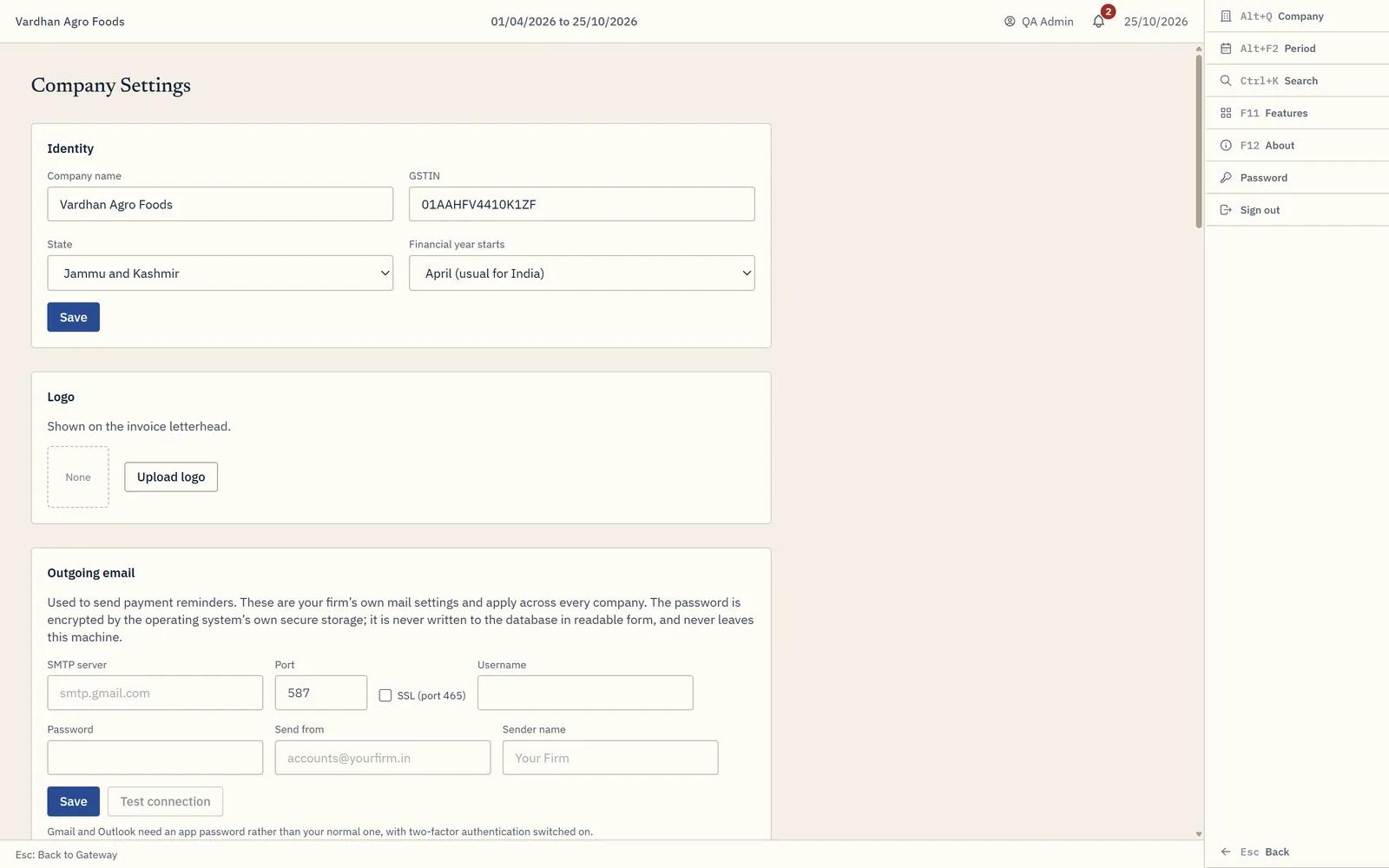
Identity, logo, contact and bank details, UPI ID, invoice terms, and the ICAI Note 1 and Note 2 text all live here. Set a UPI ID and every sales invoice prints a scannable payment QR pre-filled with the invoice total.
The documents folder is where scanned bills attached to vouchers are copied to and opened from.
Users, backups and the office network
Access, safety, and running the books from more than one desk.
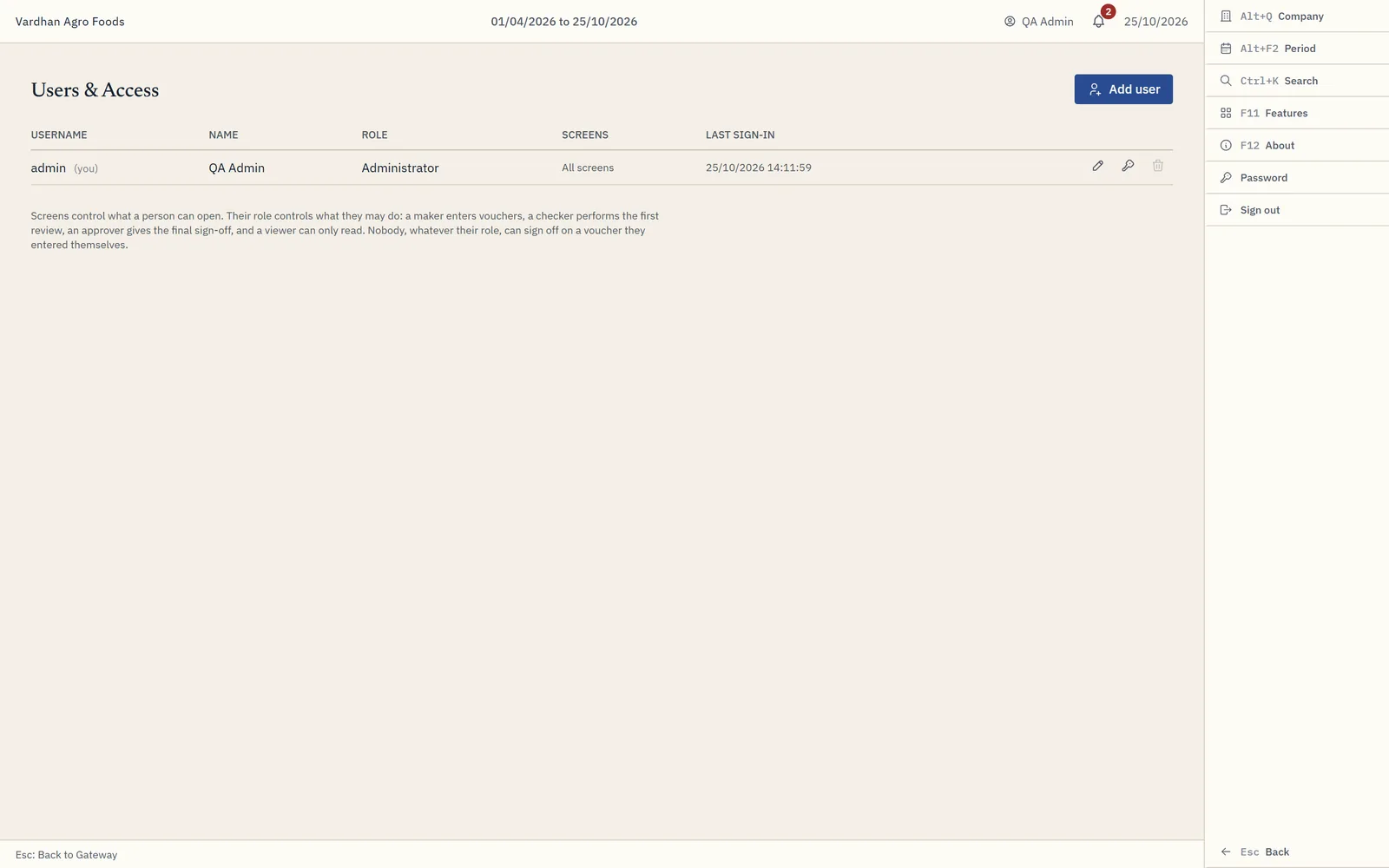
Users live at the install level rather than per company, because the same staff work across every client a practice keeps. What each of them did inside a company is recorded in that company’s own audit trail by username, so a company file stays self-describing when it travels. Roles set what someone can reach; restrict screens and those areas disappear from their gateway.
Backups
Auto backup daily runs when the software is open and skips a day it has already done. Backup writes one company to a file; Restore brings one back as a new company.
Open from data path is different from restoring, and the difference matters: it registers a company file where it already sits instead of copying it. Point two machines at the same shared folder and they open the same books. Select from drive searches a drive for company data, skipping system and program folders.
Multi-user over the office LAN
One machine holds the books and the others work in them over the network. On the machine with the data, choose Share with the office from the sign-in screen’s multi-user setup. It restarts and lists the addresses to use. Allow that port through the Windows firewall and leave the software running.
On every other machine, choose Connect to another computer and enter that address. Nothing is stored locally – sign-in, companies, vouchers and reports all come from the server. File dialogs stay on the machine in front of you, so an export you run saves to your own computer.
The link is encrypted. The first time a machine connects it remembers the server’s certificate and refuses any other from then on. Both multi-user setup screens show a fingerprint: compare them once when you connect a new machine. Even so, keep the port off the internet.